GeminiMan WearOS Manager
GeminiManPersonalization
4.8207.00 Reviews
- Version
- 6.0.6
- Installs
- 100.00K
- Age Rating
- Everyone
Screenshots
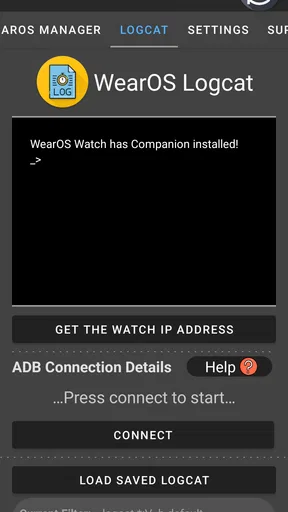
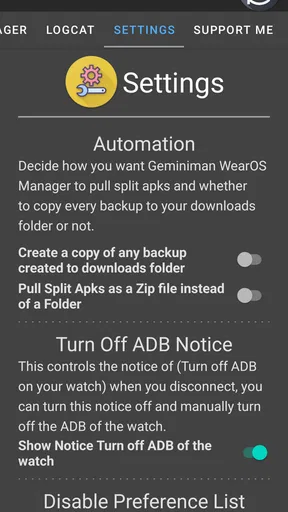
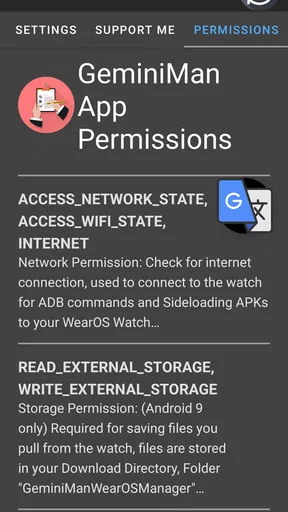
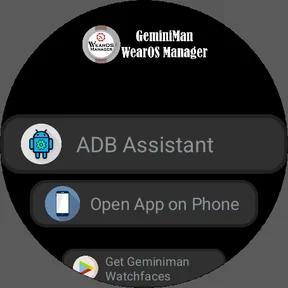
Our Review of GeminiMan WearOS Manager
 Analysis by Appyee
I noticed GeminiMan WearOS Manager because it solves a problem that usually feels much more complicated than it should: managing a Wear OS watch from an Android phone through Wi-Fi ADB. It is a free personalization app from GeminiMan, but it is aimed at people who want more control than the standard watch companion app normally provides. After using it, my impression is that its appeal is strongest during the first few days, when you discover how much easier certain technical tasks can become.
The more important question, though, is whether it deserves a permanent place on your phone after the novelty wears off. My answer is yes for enthusiasts, testers, developers, and anyone who regularly troubleshoots a Wear OS device. For a casual watch owner who only changes watch faces and checks notifications, it may feel like an unnecessary layer. The app is valuable, but its long-term usefulness depends heavily on whether you actually need ADB tools in everyday watch ownership.
What makes the first week so appealing
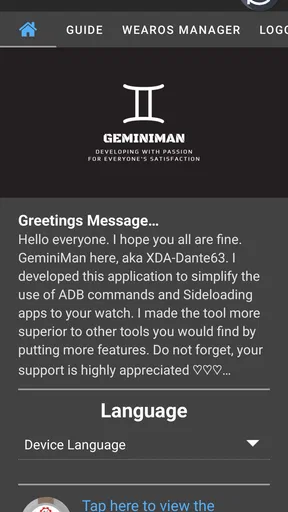
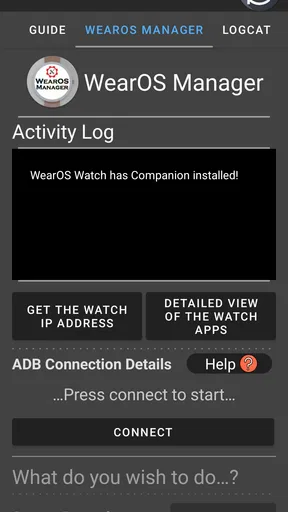
The app’s central idea is straightforward: it brings several advanced Wear OS management tasks into one mobile interface instead of making you rely on a computer and separate command-line tools. Its feature set includes app management, Logcat viewing, backups, shell commands, and other Wi-Fi ADB functions. That combination gives it a very different character from ordinary personalization apps, even though it sits in that category.
My first reaction was that it feels less like a watch-face utility and more like a compact service bench for a smartwatch. You can inspect what is happening, work with installed apps, and use commands without treating the watch as a completely closed appliance. That is the main source of its first-week appeal: it turns tasks that normally require patience and technical confidence into something more approachable on a phone.
There is also a satisfying sense of discovery. A new user can open the app expecting a narrow tool and find a broader workspace for Wear OS maintenance. Logcat is particularly useful when an app behaves strangely, because it can provide clues instead of leaving you with only vague symptoms. Backups are another practical area: even when you do not need them immediately, having a dedicated way to prepare for changes can make experimentation feel less risky.
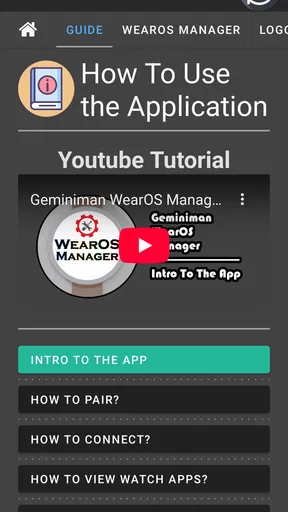
Still, the first setup is not the same as installing a typical personalization app. Wi-Fi ADB requires cooperation between the phone and watch, and the process can feel technical if you have never enabled developer-oriented settings before. I would not recommend approaching it casually while rushing out the door. Give yourself time to understand the connection process, follow the on-screen guidance carefully, and avoid running commands simply because they are available.
That last point matters. Shell access is powerful precisely because it goes beyond ordinary watch settings. It can help an experienced user investigate or automate a task, but it also removes some of the protection that a simplified companion app provides. I treat the command area as a tool for deliberate work, not as a place to experiment blindly.
The app is free to install, with optional in-app purchases ranging from $0.99 to $4.99 per item. That makes it easy to try without committing money first. The age rating is Everyone, which is useful context for availability, but the practical audience is narrower than that label suggests: the interface and capabilities are most comfortable for people willing to learn a little about Wear OS and ADB.
A realistic everyday scenario
Imagine that a watch app starts draining attention through repeated crashes or behaves differently after an update. With the usual companion app, you may be limited to opening the app, checking basic settings, or uninstalling it. With this manager, I would first inspect the situation through Logcat, then review the installed app, and finally decide whether a backup or shell-based action is appropriate. That workflow does not guarantee a fix, but it gives me more information before I start changing things.
Another useful scenario is preparing for a period of experimentation. If I want to test a new watch app, adjust the software environment, or clean up unused packages, a manager that combines app handling and backup-related tools is more convenient than switching between a computer, a cable, and unrelated utilities. The value is not that every task becomes automatic; it is that the steps are gathered in one place.
One of my favorite practical habits is to use the app before making a major change rather than after something goes wrong. A backup is most helpful when it is part of preparation, not a desperate recovery attempt. I would also keep a short note of what I changed and why. That sounds overly careful, but it makes command-based troubleshooting much easier to reverse mentally when several adjustments have been made.
What remains useful after the novelty fades
Long-term value comes from recurring maintenance, not from opening every feature once. If your Wear OS watch is stable and you rarely install anything, you may use the manager only occasionally. That is not necessarily a weakness; technical tools often earn their place by being available when needed rather than by demanding daily attention.
For me, the lasting benefit is the consolidation of tasks. Instead of remembering which operation belongs to a desktop ADB workflow and which belongs in the watch companion app, I can return to one manager when I need deeper access. That reduces friction during troubleshooting and makes occasional maintenance less intimidating.
Logcat has particular month-to-month value for users who test watch apps or help family members with problems. It can turn “the watch is acting weird” into a more focused investigation. You still need to interpret what you see, and the output may be noisy, but having access to diagnostic information is better than guessing. This is one of the clearest differences from ordinary personalization tools, which usually focus on appearance rather than behavior.
App management also becomes more useful over time as the watch accumulates software. Wear OS devices can become crowded with experiments, companion components, and utilities that are no longer needed. A focused manager gives a more deliberate way to review that environment. I would not remove anything essential without checking its purpose first, but the ability to approach installed software systematically is valuable.
Backups create another form of recurring value. I see them less as a daily feature and more as a maintenance checkpoint. Before changing several things at once, I would rather spend a little time preparing than discover later that I cannot easily return to a previous arrangement. The app does not eliminate the need for judgment; it makes a cautious workflow more practical.
The current version is 6.0.6, and that is relevant because tools connected to a changing platform need ongoing attention. I would keep the app updated through its normal distribution channel and check that its workflow still matches the Wear OS version on my watch. I would not assume that every command or management action behaves identically across watches, software builds, or manufacturer configurations.
Where it beats the usual alternatives
The usual alternative is the official watch companion app. That is the better choice for routine pairing, notifications, health-related settings, watch-face changes, and general device setup. It is designed for ordinary ownership and usually asks less technical knowledge from the user. I would not replace it with this manager.
The two apps serve different purposes. The companion app is the dashboard for living with the watch; GeminiMan WearOS Manager is closer to a toolbox for inspecting and maintaining it. If I only want to change a watch face, I would use the standard option. If I need Logcat, backups, shell commands, or deeper app handling, the manager is the more relevant tool.
The other alternative is a computer-based ADB workflow. A desktop can be more flexible for someone already comfortable with command-line tools, scripts, and file handling. It may also be preferable for extended technical sessions. The advantage here is convenience: Wi-Fi ADB management from a phone is easier to reach when I am away from my desk or only need a focused action.
That convenience has a trade-off. A phone interface can make advanced work feel safer than it really is. On a computer, the surrounding workflow may encourage me to slow down and verify commands. On a phone, the compact presentation can tempt me to tap quickly. I consider that one of the app’s most important behavioral cautions: accessibility should not be confused with simplicity.
The maintenance burden you should expect
The app itself is not the only thing that needs maintenance. The connection between the phone and watch can require attention, especially when network conditions change or when the watch has been restarted. I would not expect Wi-Fi ADB to behave like a permanent cable connection. If the manager does not immediately see the watch, I would first check the connection state and the watch’s relevant developer settings rather than assuming the app is broken.
There is also a learning curve around terminology. “Logcat,” “shell commands,” and “ADB” are meaningful to experienced Android users but can be intimidating to everyone else. The app may gather the tools, but it cannot replace basic understanding. Before using a command, I would look up exactly what it does and confirm that it applies to the watch rather than assuming an Android phone command transfers perfectly.
Backups need a similar level of care. Creating one is not the same as proving that every desired setting or piece of data can be restored exactly as expected. I would treat a backup as part of a safety plan, not as an absolute guarantee. If a change is important, I would make one adjustment at a time and check the result before continuing.
Permissions and network-related steps can also affect the initial experience. I do not see this as a flaw unique to the manager; it is part of working with a watch through ADB. However, it does mean the app is not ideal for someone who wants a zero-setup experience. The official companion app remains the less demanding route for basic ownership.
For ongoing use, I would keep a simple routine: connect only when I have a clear task, review what I am about to change, save a backup before significant modifications, and disconnect or close the session when finished. That approach prevents the manager from becoming another source of background fuss and keeps it in its proper role as an on-demand tool.
The sources of fatigue
The first source of fatigue is the mismatch between the app’s broad capabilities and the average user’s needs. Seeing many technical options can be exciting at first, but most watch owners will not need shell commands every week. If I opened the app expecting a polished personalization gallery, I would probably find it too specialized.
The second is diagnostic overload. Logcat can be useful, but raw logs are not automatically answers. A long stream of technical messages may leave a beginner more confused than before. The feature is strongest when I already have a specific symptom to investigate, not when I am browsing without a question.
The third is the risk of unnecessary tinkering. Because the manager makes deeper access more convenient, it can encourage changes that do not solve a real problem. I have found that the best long-term relationship with a tool like this comes from restraint. If the watch is working well, I do not need to optimize every package or run commands simply to feel productive.
There may also be moments when the phone is simply the wrong workspace. For substantial debugging, a computer with a larger screen and a proper keyboard can be more comfortable. If I am comparing logs, documenting several steps, or working through a complex issue, desktop tools may be better. The mobile format wins for quick, focused maintenance, not necessarily for every advanced session.
The optional purchase model is another consideration. Because the app is free to start, I can judge its usefulness in my own workflow. If I rarely use the advanced tools, there is little reason to pay for extras. If the manager becomes part of regular testing or maintenance, the optional items may make more sense, but I would evaluate them based on actual use rather than buying ahead of time.
Who should keep it installed
I would recommend it to Wear OS enthusiasts who enjoy understanding how their devices work, developers testing watch applications, and technically confident users who want Wi-Fi ADB tools without reaching for a computer every time. It is also a sensible utility for someone who frequently helps troubleshoot watches and wants access to app management, logs, and backup-oriented workflows in one place.
I would be more cautious recommending it to a person who only wants a watch-face app, notification settings, or a simple pairing experience. The manager will not replace the normal companion application, and its deeper features may feel like clutter if they never solve a real problem for you.
Before installing, I would ask myself four practical questions. Do I own a Wear OS watch that I expect to maintain beyond basic settings? Am I comfortable following technical instructions? Would access to logs or shell commands help me troubleshoot? Do I have a reason to manage apps or prepare backups from my phone? If most answers are no, the ordinary watch tools are probably enough.
If the answers are yes, I would begin with a small, low-risk task rather than immediately changing system behavior. Learn how the connection works, look through the app-management area, and understand what the backup workflow offers. Only after that would I consider commands or deeper troubleshooting. This staged approach is the best way to gain the app’s benefits without turning experimentation into avoidable maintenance.
The app has built a strong reputation among its existing audience, with a 4.8 average from around 2.6 thousand ratings and over 100 thousand installs. Those figures suggest that it is not merely a curiosity, although they do not change the central point: its usefulness is highly dependent on your technical needs.
My long-term verdict
After the initial excitement, I do not see GeminiMan WearOS Manager as an app I would open every day. I see it as a dependable specialist tool that earns its space through occasional, meaningful jobs. When I need to inspect a problem, manage watch software, prepare a backup, or work with Wi-Fi ADB, having those functions on my phone is genuinely convenient.
Its lasting value comes from reducing the distance between a problem and a useful investigation. Instead of accepting that a watch is opaque, I can gather more information and take a more deliberate approach. That is a real advantage over the standard alternatives, even though it comes with a responsibility to understand what I am doing.
The limitations are equally clear. Setup may be more involved than a normal personalization app, logs can overwhelm beginners, and a desktop can remain the better environment for long technical sessions. The manager also cannot make an unstable watch automatically healthy or make every ADB action risk-free. It gives me access and organization, not magic.
For that reason, I would keep it installed on a watch used for testing, customization, or regular troubleshooting. I would probably skip it on a simple everyday setup that never needs deeper maintenance. The free entry point makes that decision easy, and the Everyone rating makes it broadly accessible, but the real test is whether its tools become part of your routine.
My recommendation is simple: install it if you want a Wear OS maintenance toolbox, not if you are looking for another ordinary personalization app. Used carefully, it can remain useful long after the first-week novelty fades. Used without a clear purpose, it may become one more technical app sitting untouched on your phone.
Verdict
Strengths of GeminiMan WearOS Manager
- Simplifies installing and managing Wear OS apps from a phone.
- Provides a convenient way to browse compatible watch applications.
- Can reduce the need to search for apps directly on the smartwatch.
- Useful for organizing access to Wear OS content in one place.
- Helps users discover tools and utilities designed for smartwatches.
Limitations of GeminiMan WearOS Manager
- Compatibility may vary between watch models and Wear OS versions.
- Some features may depend on companion apps or additional permissions.
- The app catalog may not include every Wear OS application available.
- Setup can feel confusing for users unfamiliar with sideloading or watch management.
- Performance may be affected by Bluetooth connection quality or phone limitations.
Similar Picks in This Category
View All
Microsoft SwiftKey AI Keyboard
SwiftKey4.3

Wallpapers
Google LLC4.1

Zedge™ Wallpapers & Ringtones
Zedge4.7

Yandex Browser with Alice AI
Direct Cursus Computer Systems Trading LLC4.3

Ringtone Maker:create ringtone
Big Bang Inc.4.7

Fonts Keyboard
Fonts Keyboard3.9
Frequently Asked Questions
What is GeminiMan WearOS Manager used for?
GeminiMan WearOS Manager is a companion utility designed to help Wear OS users manage and control certain smartwatch functions from an Android phone. Depending on the watch model and Android version, it may provide tools for handling apps, settings, files, connections, or device information more conveniently than using the watch alone. Its available features can vary between supported devices, so checking compatibility before downloading is recommended.
Which smartwatches and phones are compatible with GeminiMan WearOS Manager?
Compatibility depends mainly on the Wear OS version, the smartwatch manufacturer, and the Android phone being used. The application is intended for Wear OS devices, but not every watch exposes the same management features. Some functions may also require a newer Android release, Bluetooth access, or additional permissions. Before installing, review the app listing and developer information to confirm that your specific watch and phone are supported.
Does GeminiMan WearOS Manager require special permissions or advanced setup?
The app may request permissions related to Bluetooth, nearby devices, notifications, storage, accessibility, or background activity, depending on the tools you use. Certain management functions can require additional setup on the phone or watch, and some advanced options may depend on developer settings or ADB-related configuration. Read each permission prompt carefully and enable only what is necessary for the feature you want to use.
Can GeminiMan WearOS Manager install apps or change system settings on a Wear OS watch?
GeminiMan WearOS Manager may offer management features that go beyond basic watch connectivity, but the exact capabilities depend on the model, Wear OS version, and permissions granted. Some operations may allow users to handle applications or adjust supported settings, while protected system functions can remain unavailable without special access. The app should not be assumed to provide unrestricted control over every Wear OS device.
Is GeminiMan WearOS Manager safe to use, and is it free?
The safety and cost of using GeminiMan WearOS Manager depend on where it is downloaded and which version is installed. Downloading from a trusted official source reduces the risk of modified files, while permissions should be reviewed before use. The app may be free to install, although some tools or features could require payment, donations, or additional services. Check the current store listing for pricing and privacy details.
